
CT HMIS HIV/AIDS Acuity Index Outcomes Assessment/Report
To download or print this document, please click here.
Table of Contents
HUD HOPWA Summary Screen Updates
Assigning a Case Manager to a Client in CT HMIS
HIV / AIDS Acuity Index Report (Org)
Overview
The purpose of the KB article is to help users understand how to complete the data entry and run the report for the HIV/AIDS Acuity Index Outcomes.
HUD HOPWA Summary Screen Updates
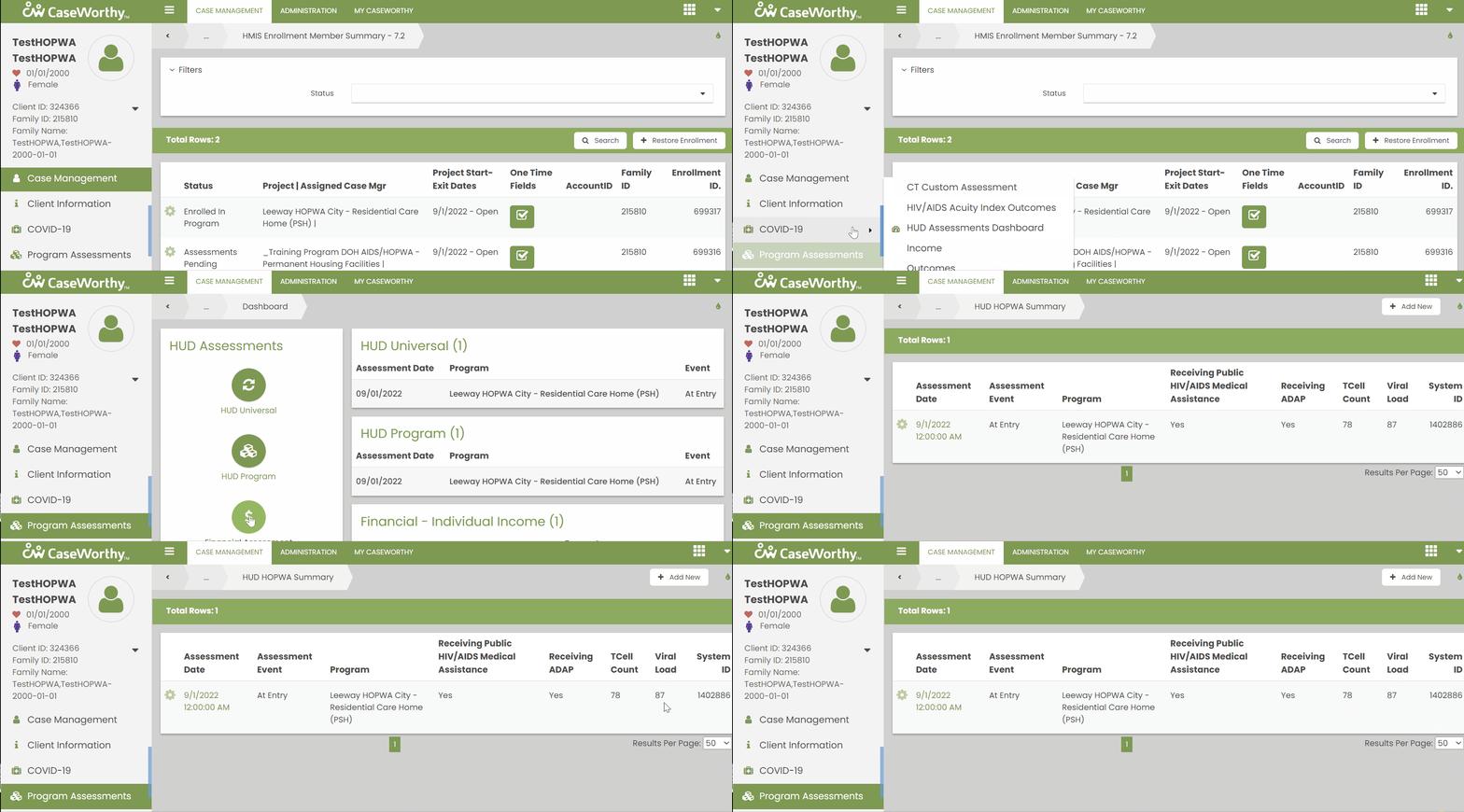
The HUD HOPWA Assessment Summary has been updated across all roles to include additional columns for Receiving ADAP, TCell Count, and Viral Load.
Instructions
Fully complete this tool at initial entry and at least every six months that a client is enrolled in your program.
Entering an Acuity Index Outcomes Assessment (Required by specific AIDS/HOPWA Funded PSH programs Only)
- On the left-side navigation, click “Program Assessments”.
- On the sub-menu, click “HIV/AIDS Acuity Index Outcomes Assessment”.
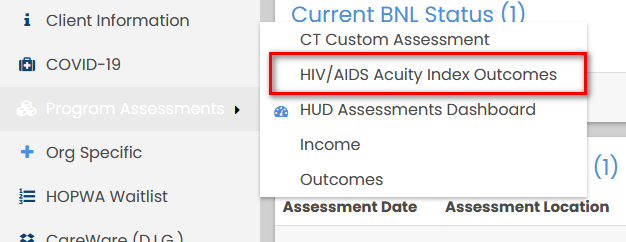
3. The ‘HIV/AIDS Acuity Index Outcome Assessment Summary” form will load.

4. Click “Add new” (top right corner).
5.In the Assessment Manager box, click on the words “No Assessment Selected or the down arrow”.
6. Choose the AIDS/HOPWA Funded program enrollment from the Assessment Manager drop down.
a. Do NOT create a new assessment if there is one visible in the drop down list on or close to the date of the Acuity Index you are entering!
b. If the client is exited, the assessment for that program enrollment will not show here. The client must have a program enrollment that does not have an end date.
7.Choose the Category – Acuity Index. The Acuity Index Domains including the HIV specific section will display on the screen below.
8. Enter Comments if applicable.
9. Click on the Add Signature button. The Signature Capture pop up window will appear. Enter Your Name, Role/Title. You can choose Store this signature if you would like to save it and use it for future signatures. You can use the mouse pad to enter your signature above the Sign Here line and click on Save.
10. Click on the Domain checkbox to select all.
a. Levels * – Choose the applicable level from the drop down menu.
b. Service Plan Goal * – choose Active or Deferred to identity which should be presented as active goals or deferred goals in the service plan.
c. Total Score (New) – this field will populate once a Level has been selected and the total will display at the bottom of the form in the SUM field.
11. Click Save and Close (located in the bottom right corner).


Assigning a Case Manager to a Client in CT HMIS
*Refer to CaseWorthy – Adding a Case Manager for a full guide with screenshots.
- Go to the Case Management Tab > Left Menu > Case Management > Case Managers/Mentors > Add New
- Complete all required fields on the My Case Manager Assignment form using the Case Manager/Mentor Provider field to identify the client’s Case Manager.

HIV / AIDS Acuity Index Report (Org)
Administration Tab > Left Menu: Reports > Compliance Reports > SECTION: Veteran / HOPWA Reports > HIV/AIDS Acuity Index Report (Org)

- Click on “HIV/AIDS Acuity Index Report (Org)”.
- Enter the report “Start Date” and “End Date”.
- Choose the “Project(s)” you wish to run the report for.
a. You can click on the magnifying glass and select from the list of programs and then choose “Add Selected” once you have chosen all of the programs/projects you wish to include in the report.

4. Click on the Report button to launch the report. A pop up window will appear and the report will load unless pop-up blockers are on.