The Legacy Version of Engage is Retiring Today!

Hello Engage Users!

Today we’re flipping the switch to OFF for the legacy version of Engage!

As we mentioned in previous emails, we’ve made big improvements to the speed and security of your Engage experience and these big changes required a move to a new version and URL The updated version of Engage has a new website address and a password reset will be required. Below are instructions for both Desktop and Mobile access to the new version.

As always, you can always log a portal helpdesk ticket if you have questions or would like assistance with the upgrade.

For DESKTOP use of Engage, simply use the new URL

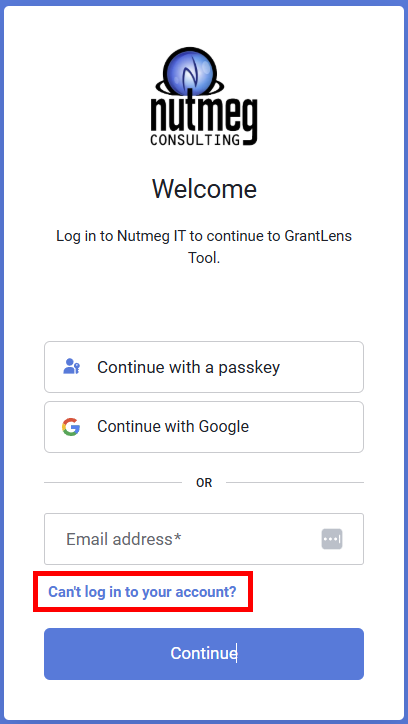
Visit app.useengage.net and reset your password using the “Can’t Log in to your account?” Link and follow the instructions in your Password reset email. On first login, you’ll see a new MFA code requirement, an email with a temporary code will be sent to your email. Simply Copy/paste that into the authentication box.

For your mobile device, you must delete the existing app on your phone and reinstall it.

Follow the steps outlined below.

Step 1: Uninstall your existing Engage app on your mobile device

Please note, if you’ve done some data entry while offline, be sure to connect the app and allow it to sync before deleting the app.

On Iphone

  1. Touch and hold the app icon.
  2. Tap Remove App from the menu.
  3. Tap Delete App.
  4. Tap Delete to confirm.

On Android

  1. Touch and hold the app icon.
  2. Drag upwards to show the “Remove” and “Uninstall” buttons
  3. Drop it onto the “Uninstall” icon
  4. Click the “Uninstall” button

Step 2: Sync, Reset Your Password and Biometrics

The previous version of the app will be disabled in two weeks on September 25th and data not synced to the server on that date will not transfer. To make sure you are up to date, ensure you’ve loaded Engage on your mobile device while online before deleting the legacy app then follow the below instructions to reset your password

What’s this video with instructions for existing users.

This is a one-time process! Once set up, you’ll be able to login via your biometrics in the future quickly and easily.

Step 3: Add the Engage Icon to your Mobile’s Home Screen

Follow the Installation guide here, instructions are available for both iPhone and Mobile